
Overview
What is Vidnoz Image to Video?
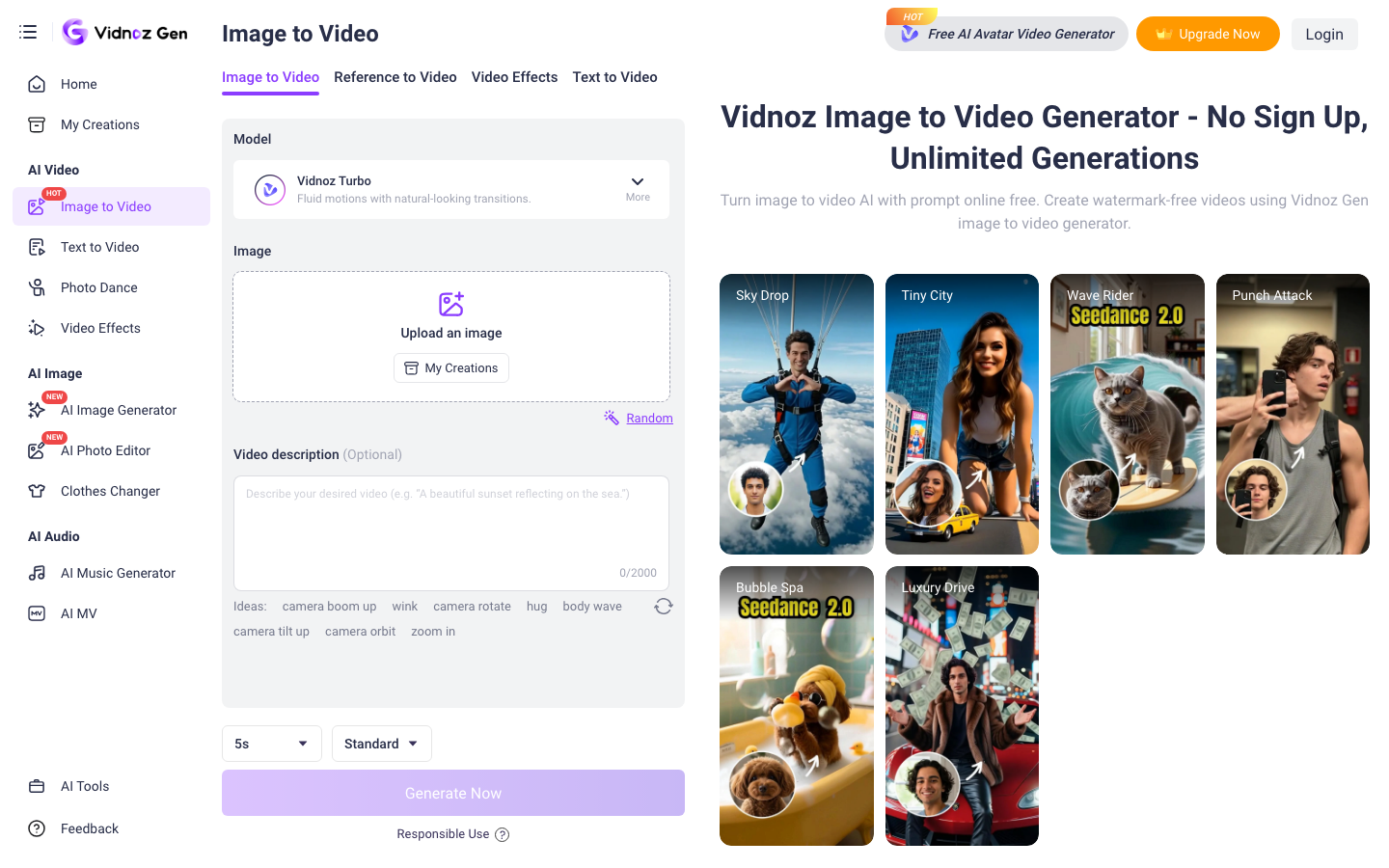
Vidnoz Image to Video is a focused feature surface inside Vidnoz Gen. Its official page supports image upload, optional start and end frames, prompt-based video description, model selection, multiple aspect ratios, and several video models including Google Veo, Kling, Wan, Hailuo, PixVerse, and Luma. The page promotes free access, but account credits and premium model limits should be checked before using it for production volume.
Good fit
Who should use Vidnoz Image to Video?
- Creators animating portraits, artwork, product photos, and social images.
- Marketers creating quick product demos, ad variations, and visual social posts.
- Users who want to compare several video models from one image-to-video interface.
- Beginners who want a no-sign-up starting point before adopting a paid tool.
Compare first
Who should compare alternatives first?
- Verify current daily limits, model access, output resolution, and watermark rules before relying on the free workflow.
- Compare dedicated generators if you need longer clips, stronger reference consistency, or advanced camera control.
- Check whether premium Vidnoz Gen credits are required for the model and quality level you want.
Use cases
Vidnoz Image to Video use cases
- Animate product photos and e-commerce images.
- Create portrait, anime, cinematic, and stylized image-to-video clips.
- Generate social videos in landscape, portrait, square, and other aspect ratios.
- Use start and end frames to guide a transition between images.
- Try multiple video models from one browser workflow.
Capabilities
Vidnoz Image to Video features
- Image-to-video generation with prompt descriptions.
- Optional start and end frame images.
- Model options including Google Veo, Kling, Wan, Hailuo, PixVerse, and Luma.
- Aspect-ratio controls including 16:9, 9:16, 1:1, and other social formats.
- No-sign-up and no-watermark positioning on the public feature page.
- Related avatar, text-to-video, URL-to-video, and editing tools in the broader Vidnoz platform.
Pricing
Vidnoz Image to Video pricing, plans, and credits
Vidnoz Image to Video can be tried free on the official feature page. Vidnoz pricing uses credits across its AI video and image tools, so paid users should verify current Vidnoz Gen credit costs, model access, export quality, and account limits.
Image-to-video generation on the public feature page
Quick tests and lightweight social assets.Paid credits unlock broader Vidnoz AI video and image capabilities
Users needing higher volume or premium models.Free plan and limits
The official feature page promotes no-sign-up image-to-video access and no-watermark output. Verify current daily generation, model, resolution, and export limits in the live product.
Credits and billing checks
- Confirm whether usage is metered by credits, minutes, generations, seats, or exports.
- Check whether free usage renews monthly or is a one-time allowance.
- Verify whether team seats share one usage pool or receive separate allowances.
- Review export limits, watermark rules, commercial rights, and cancellation terms before paying.
Verification notes
What to verify before choosing it
- Confirm current pricing and free plan limits on the official site.
- Test the output quality against your real workflow before scaling usage.
- Compare the tool against close competitors for pricing, features, and workflow fit.
Tradeoffs
Vidnoz Image to Video strengths and tradeoffs
Pros
- Low-friction free entry makes it easy to test image-to-video output.
- Multiple model choices and aspect ratios fit quick social experiments.
- Start/end frame controls give users more direction than a one-click photo animator.
Cons
- Free and premium limits can vary by model, account, and credit balance.
- The focused feature page is not a substitute for a full timeline editor.
- Users should test faces, product details, motion, and prompt adherence before using clips in ads.
Recommendation
Should you use Vidnoz Image to Video?
Use Vidnoz Image to Video as a low-friction first test for animating images, product shots, and social assets. It is most useful when free access and model choice matter; compare a dedicated generator when you need longer scenes, stronger consistency, or more advanced controls.
Questions
FAQs of Vidnoz Image to Video
What is Vidnoz Image to Video?
It is a browser-based Vidnoz Gen feature that animates uploaded images into short videos using prompts, model selection, and optional start and end frames.
Is Vidnoz Image to Video free?
The official page promotes free, no-sign-up access and no-watermark output. Check the current product for daily, model, resolution, and credit limits.
Which models does Vidnoz Image to Video support?
The official page lists options including Google Veo, Kling, Wan, Hailuo, PixVerse, and Luma, though availability can depend on the current account and model selector.
Can I use a start and end image?
Yes. The feature page includes start-frame and end-frame inputs for guiding image-to-video transitions.
Who is Vidnoz Image to Video best for?
It is best for creators and marketers making quick photo animations, product visuals, and social clips before moving to a more advanced production tool.